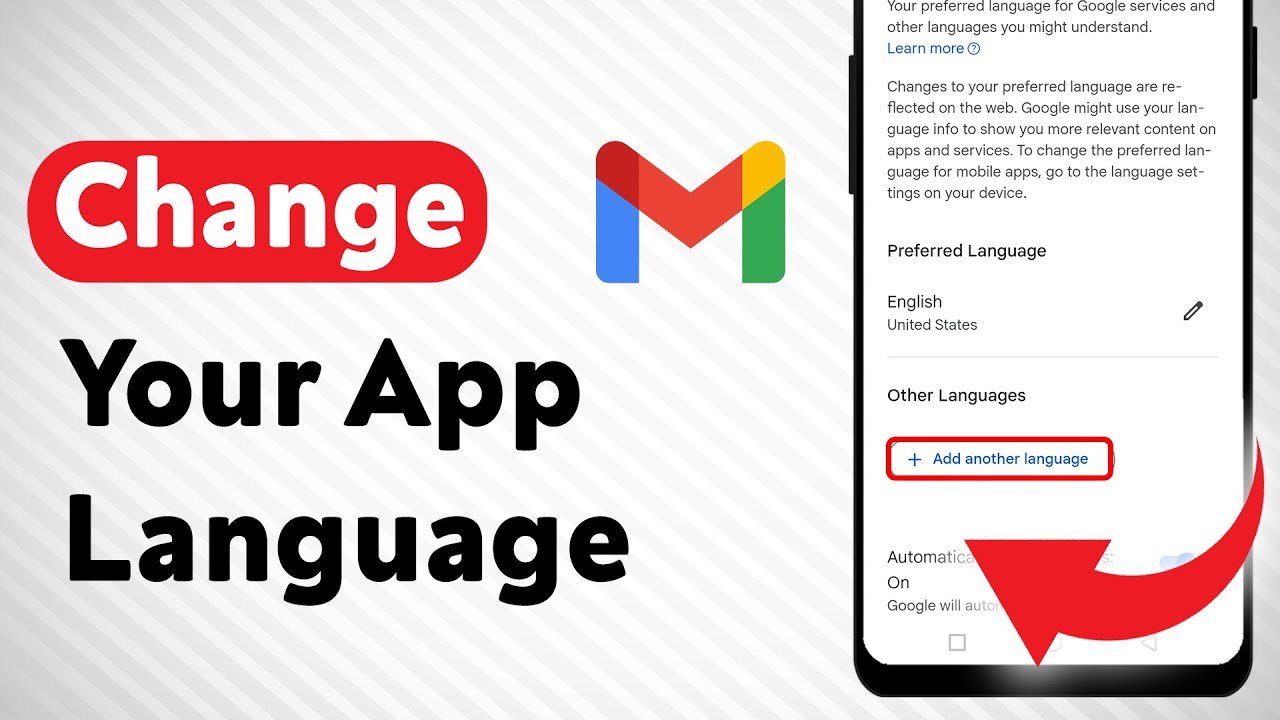
How to Change the Language of Gmail (Web, Android, iPhone) — A Simple Step-by-Step Guide
If Gmail is showing a language you don’t want, you’re not stuck with it. You can change the Gmail language in a couple of minutes on a computer, and on mobile it usually follows your phone’s language settings. This guide walks you through both, plus the common “why did this happen?” problems people run into.
By the end, you’ll know exactly how to change the language of Gmail, how to switch back if it changes again, and how to handle typing in multiple languages (like English + Bangla) without messing up your Gmail menus.
What “Gmail Language” Actually Means
Gmail has two different “language” ideas that people often mix up:
- Gmail display language: This changes the interface words like Inbox, Compose, Sent, Settings, etc.
- Input/typing language: This helps you type in another language (using input tools or keyboards). It doesn’t necessarily change the Gmail menus.
Most people want the first one: the Gmail display language. Let’s start there.
How to Change the Gmail Display Language on a Computer (Web Version)
This is the most direct method, and it works no matter what phone you use. If you only do one thing, do this.
Step 1: Open Gmail Settings
- Open Gmail in your browser and sign in.
- Click the gear icon (Settings) in the top-right.
- Click See all settings.
Step 2: Find the Language Option
In the General tab, look for the Language section (sometimes shown as “Gmail display language”).
Step 3: Pick Your Preferred Language
- Open the dropdown list.
- Select your language (for example: English (US), English (UK), বাংলা, हिन्दी, Español, etc.).
Step 4: Save Changes
- Scroll to the bottom of the page.
- Click Save Changes.
Gmail will refresh and your interface language should update immediately.
Quick Fix: Change Gmail Language from the Bottom of the Inbox
Sometimes Gmail shows a language selector in the footer (bottom area) of the Gmail page. If you see it, it’s the fastest way to switch.
- Scroll to the bottom of your inbox.
- Look for a language dropdown or the current language name.
- Select your preferred language and apply.
If you don’t see it, no problem. The settings method above is the reliable one.
How to Change Gmail Language on Android
On Android, Gmail usually follows your phone’s system language. Newer Android versions can also support changing language per app (depending on the device and app support).
Option A: Change Your Android Phone Language (Works on All Devices)
- Open your phone’s Settings.
- Go to System → Languages & input → Languages (names can vary by brand).
- Add your preferred language if needed.
- Move your preferred language to the top of the list.
After this, open Gmail again. The Gmail app should display in your new language.
Option B: Change Gmail Language Only (Per-App Language, If Available)
On Android 13 and newer, many phones include a system setting for per-app language preferences. If your device supports it, you can change Gmail without changing your whole phone.
- Open Settings.
- Go to Apps → Gmail.
- Tap Language or App language.
- Select your preferred language.
If you don’t see an app language option for Gmail, your phone may not support it for all apps. In that case, Option A is the simplest route.
How to Change Gmail Language on iPhone (iOS)
On iPhone, Gmail often follows your iPhone language. On newer iOS versions, you may also be able to set language per app from Settings.
Option A: Change iPhone Language (Most Consistent)
- Open Settings.
- Tap General.
- Tap Language & Region.
- Change your iPhone language (or add another language if needed).
This changes the phone language, and Gmail typically follows it.
Option B: Change Gmail Language Only (If iOS Shows App Language)
- Open Settings.
- Scroll down and tap Gmail.
- Tap Language (or “Preferred Language” if shown).
- Select the language you want.
If you don’t see a language option inside Gmail settings, your iPhone may require adding a second language to the device first, or it may simply not expose per-app language for that app.
If Gmail Keeps Switching Back: Change Your Google Account Language Too
Here’s a real-world situation: you change Gmail to English, it looks fine, then a few days later another Google page shows in a different language and Gmail starts feeling inconsistent again. That’s often because your Google Account language is set differently.
To keep things consistent across Google services (Gmail, Drive, Account settings), update your Google Account language:
- Go to your Google Account language settings page.
- Set your preferred language as primary.
- Save and refresh Gmail.
If you want the official Google steps, you can follow their support instructions here: Change your Google Account language.
How to Change Gmail Typing Language (Input Tools) on a Computer
Maybe you want Gmail menus in English, but you want to type emails in Bangla (or another language). That’s normal, and Gmail supports this using input tools.
Enable Input Tools in Gmail
- Open Gmail on a computer.
- Go to Settings → See all settings.
- In the Language section, find “Enable input tools” and turn it on.
- Choose the input tools you want.
- Save changes.
After that, you can switch typing tools directly in Gmail when composing an email.
Real-Life Examples (So You Don’t Waste Time Guessing)
Example 1: Gmail Suddenly Turned to Another Language on a Shared PC
You used a friend’s laptop or a cyber cafe, signed in, and now Gmail shows weird menu words. In many cases, the browser’s saved language or cookies influenced the display. Fix it using Gmail settings on the web (the first method), then sign out and clear browsing data if it keeps returning on that computer.
Example 2: You Want English Menus but Bangla Typing
Keep Gmail display language as English for clean menus. Then enable input tools or use a Bangla keyboard to write emails. This keeps your Gmail interface stable while still letting you type naturally.
Example 3: Your Phone is Bangla, but You Want Gmail in English
If your Android or iPhone supports per-app language, set Gmail to English only. If not, Gmail will follow your phone language, so you’ll need to either change the device language or use Gmail mostly on the web.
Troubleshooting: Gmail Language Problems and Quick Fixes
Gmail Settings Page Is Also in the Wrong Language
That’s annoying, but you can still fix it. Look for the gear icon, then the option that resembles “See all settings.” Once you reach the general settings page, the Language dropdown is usually near the top. If needed, use your browser’s built-in page translation for a minute just to find the right section.
Gmail Changed on Mobile but Not on Desktop (or the Opposite)
This happens when your phone language is different from your Gmail web setting. Desktop Gmail uses Gmail display language settings, while mobile Gmail often follows device language. Align them by setting your Google Account language and your device language to match, or use per-app language where available.
Language Changed After Clearing Cookies
Cookies help sites remember preferences. If Gmail “forgot” your language after a cleanup, just reset it in Gmail settings again. It only takes a minute.
Helpful FAQ (Quick Questions & Answers)
Can I change Gmail language without changing my Google Account language?
Yes. On a computer, Gmail has its own display language setting. But if you want all Google services to match, changing the Google Account language is a smart move too.
Why doesn’t Gmail on Android have a language setting inside the app?
On many Android devices, Gmail uses your system language. Some newer Android versions can provide per-app language settings through system settings, but it depends on device support and app configuration.
Can I use two languages in Gmail?
Yes. You can keep the Gmail interface in one language and type emails in another using input tools (web) or a multilingual keyboard (mobile).
Will changing language affect my emails or labels?
Your emails won’t change. Labels may display translated names depending on the language, but the underlying labels and messages stay the same.
Recommended Resources (Official and Trustworthy)
If you want official documentation straight from the sources, these are reliable:
Related Reading on Our Website
If you found this helpful, you’ll probably like these too:
- Gmail Security Tips: Simple Steps to Protect Your Account
- Contact Us (if you want help fixing Gmail issues on your device)
Final Tip (So You Don’t Have to Fix This Again)
Here’s the easiest way to keep Gmail language stable: set your Gmail display language on the web, then set your Google Account language to match, and finally keep your phone language consistent (or use per-app language if your device supports it). Once everything agrees, Gmail usually stays exactly how you want it.
